MCP Integrations
Connect and use MCP servers directly in v0
Introduction
MCP stands for Model Context Protocol. It allows v0 to connect to external servers that provide tools and capabilities for enhanced interactions.
v0 offers MCP in two ways:
- Bring-your-own MCP Servers: You can set up your own MCP server by configuring it or choosing from a preset. This allows you to host your own MCP server or use one provided by a third party.
- MCP from Marketplace Integrations: v0 supports tool calls from integrations installed via the Vercel Marketplace. This allows you to connect services like databases, APIs, and other platforms directly to your v0 chats with no additional setup.
Bring-your-own MCP Servers
There are two entrypoints in v0 for using your own MCP server: the prompt form and the MCP Connections settings page.
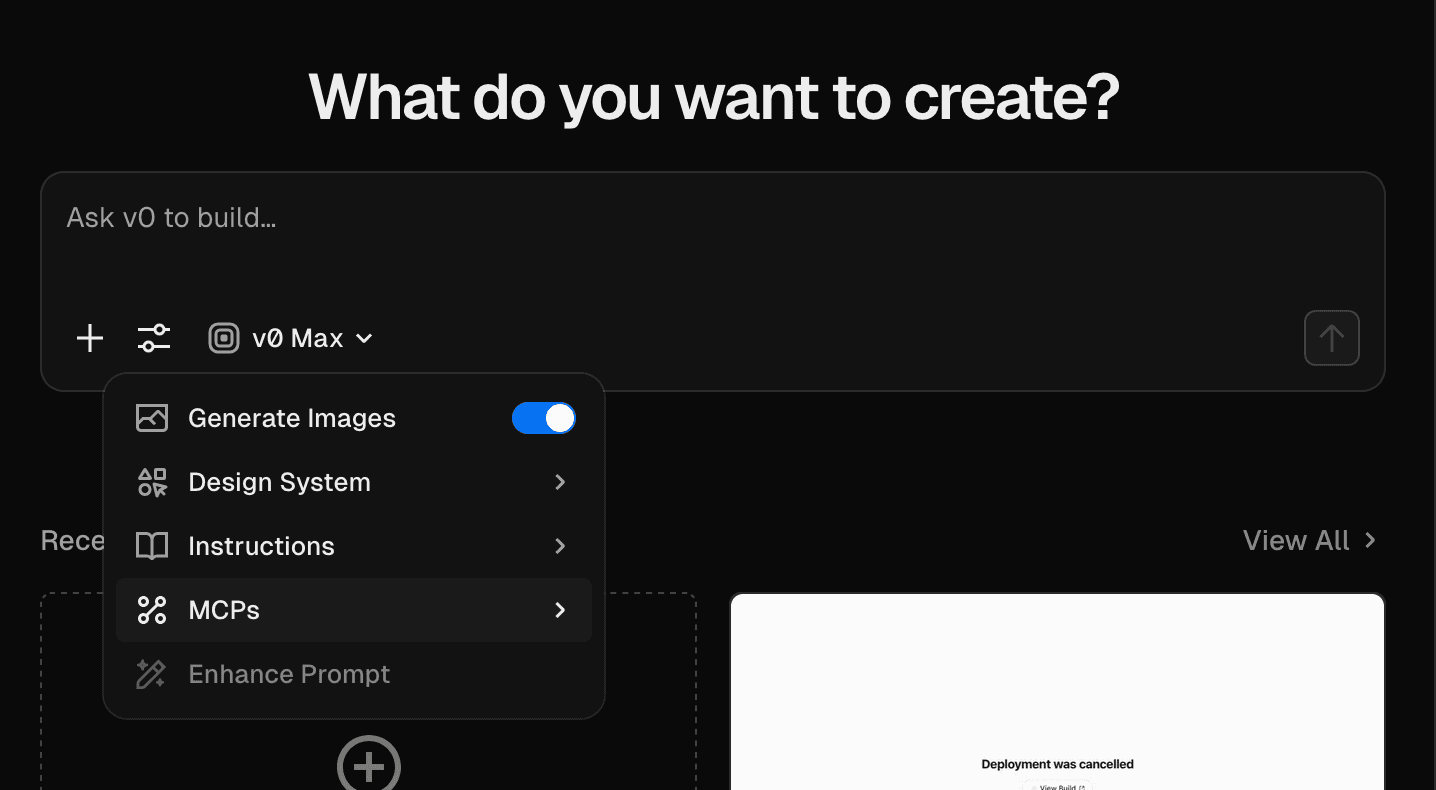
By clicking the Add MCP button in either the settings page or prompt form, you can configure a custom MCP server or select from a preset. Some presets include:
- Context7: for searching documentation and knowledge bases
- Glean: for querying internal company data
- Granola: for AI meeting notes and transcription
- Hex: for data analysis and visualization
- Linear: for project management and issue tracking
- Notion: for accessing and managing Notion databases and pages
- PostHog: for product analytics and feature flags
- Sanity: for content management and retrieval
- Sentry: for error tracking and monitoring
- Zapier: for connecting to thousands of apps and automating workflows
Configuring an MCP Server
If you decide to not use a preset, you can manually configure your MCP server. v0 supports four kinds of authentication:
- No Auth: for public MCP servers that do not require authentication
- Custom Headers: for MCP servers that require an API key or other custom network headers for access
- Bearer Token: for MCP servers that use bearer token authentication
- OAuth: for MCP servers that support OAuth 2.0 for authentication
Using the MCP in your generation
Currently, MCP servers only provide tools for v0 to use during generation. When you start a new chat or continue an existing one, v0 will automatically consider the connected MCP servers and their tools when generating responses. The generation v0 creates cannot use the MCP tools directly. However, you can pair the MCP with other features like Environment Variables for v0 to use in its generations.
MCP from Marketplace Integrations
v0 supports tool calls from Vercel Marketplace Integrations, allowing you to connect services from the Vercel Marketplace directly to your v0 chats. These integrations provide v0 with specialized tools and capabilities to interact with external services like databases, APIs, and other platforms.
With Native Integrations, v0 can:
- Query and manage your databases (e.g., Neon, Supabase, Upstash)
- Ask questions about your products and revenue (Stripe)
- Interact with cloud services and APIs
- Access project-specific resources and data
- Execute operations across your integrated services
- Provide context-aware assistance for your connected tools
Getting Started
Important: Enabling remote MCP for an integration may increase per-message costs and could potentially execute destructive actions. Always review the integration's capabilities before enabling auto mode.
Connecting Integrations
-
Navigate to the Connect Tab
- Open any chat in v0
- Click on the Connect tab in your chat interface
- Browse available integrations from the Vercel Marketplace
-
Install an Integration
- Select an integration from the marketplace
- Follow the authentication and setup flow
- Grant necessary permissions for v0 to access the service
-
Configure Integration Settings
- After connecting, click on the integration to manage its settings
- Configure MCP tool permissions (see Permission Modes below)
- Set up resource-specific access if applicable
Permission Modes
Native Integrations support three permission modes for MCP tool execution:
Disabled
🚫 Disabled- v0 will not use tool calls from this integration
- The integration remains connected and can be accessed in your generation, but v0 will not make tool calls to interact with it
Ask for Approval (Manual)
✋ Manual- v0 will ask for permission before executing any tool call
- You'll see a confirmation dialog showing:
- Which tool will be called
- What parameters will be used
- What action will be performed
- Default mode for new integrations
- Recommended for integrations that perform write operations
Always Run (Auto)
✓ Auto- v0 will automatically execute tool calls without asking. You will have 5 seconds to cancel after the call is made.
- Provides a seamless, hands-free experience
- Best for read-only operations or trusted integrations
- Safety feature: Even in auto mode, dangerous operations still require explicit approval
Managing Integrations
Configuration Dialog
To manage an integration's settings:
- Navigate to the Connect tab in your chat
- Click on a connected integration
- The Manage Integration dialog shows:
- Integration Details: Name, description, and category
- Instance Information: Connected resource name and ID
- Documentation Link: Direct link to Marketplace listing
- Remote MCP Toggle: Configure permission mode
- Configure Button: Access integration-specific settings
Changing Permissions
To change an integration's permission mode:
- Open the Manage Integration dialog
- Locate the Remote MCP section (marked with a "New" badge)
- Select your preferred mode:
- Click the 🚫 icon for Disabled
- Click the ✋ icon for Ask for Approval
- Click the ✓ icon for Always Run
- Changes take effect immediately
Disconnecting Integrations
To remove an integration:
- Open the Manage Integration dialog
- Click Configure to access integration settings
- Follow the integration's disconnect flow on Vercel
- The integration will be removed from your Connect tab
Integration Scoping
Many marketplace MCPs operate globally, but v0 scopes them to specific projects and resources:
- Project-Specific: Integrations are linked to your v0 project
- Resource-Specific: Database integrations target specific database instances
- Context-Aware: v0 automatically provides resource context to ensure commands target the correct service
When v0 uses an integration, it includes context like:
- Resource ID (e.g., specific database instance)
- Integration instance name
- Project associations
This ensures all operations are scoped correctly and prevents accidental cross-project operations.
Examples
Database Integration
After connecting a Neon database integration:
User: "Show me the schema for my users table"

v0: [Uses neon_query tool to inspect schema]
    "Your users table has these columns:
    - id (uuid, primary key)
    - email (varchar)
    - created_at (timestamp)
    - updated_at (timestamp)"
Related Resources
- Vercel Marketplace - Browse available integrations
- MCP Server Documentation - Use v0 as an MCP server in your IDE